Report Packs
Report Packs are the end-of-term academic reports sent to guardians. They compile each student's assessment results, attendance, teacher comments, and grades into a formatted PDF report card.
Report Pack Workflow
1. Configure report template (Settings → Report Templates)
         ↓
2. Create a report pack for the term
         ↓
3. Teachers enter marks and comments
         ↓
4. School Admin reviews and approves
         ↓
5. Generate PDFs and distribute to guardians
Creating a Report Pack
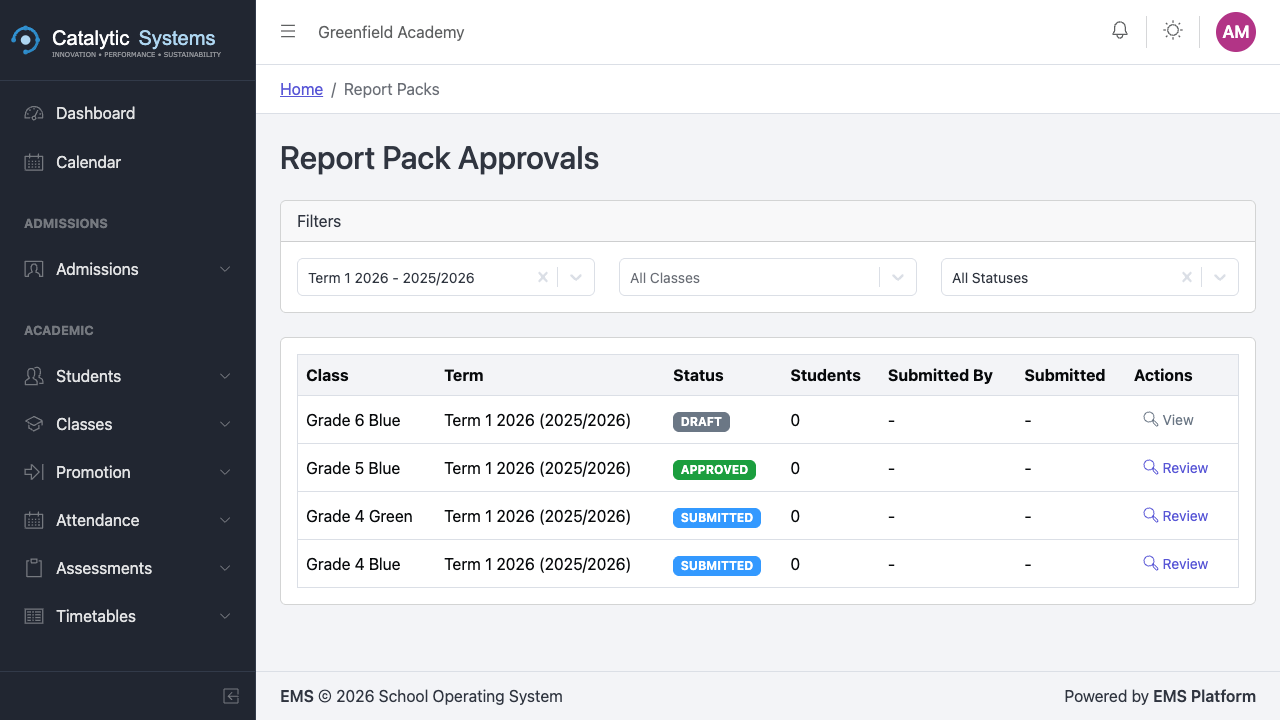
- Go to Analytics → Report Packs.
- Click New Report Pack.
- Select the Term and Classes to include.
- Choose the Report Template.
- Click Create.
Teachers Entering Comments
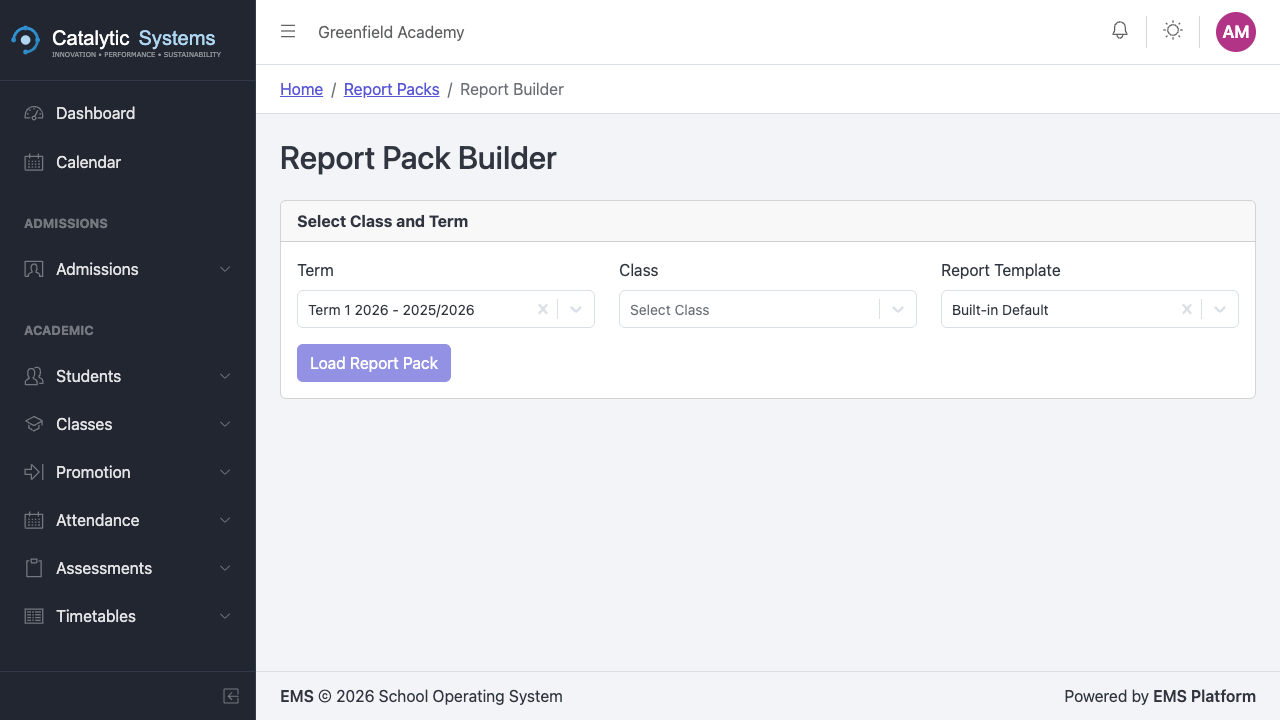
Teachers access their report pack entries from Analytics → My Report Packs:
- Open the report pack.
- For each student, enter:
- Subject marks (pulled from assessments if already entered)
- Subject teacher comment
- Class teacher comment (class teacher only)
- Click Save.
Reviewing Reports
School Admins review completed reports before generation:
- Open the report pack.
- Use the Student Preview to check each student's report.
- Flag any entries that need correction.
- Mark the pack as Approved when ready.

Generating PDFs
- From the approved report pack, click Generate PDFs.
- EMS generates a PDF for every student in the pack.
- Download the ZIP file containing all PDFs.
Distributing to Guardians
Reports can be distributed:
- Printed — download the ZIP and print at school
- Emailed — use the Send to Guardians button to email each guardian their child's report directly from EMS