Requisitions
The Requisitions module manages purchase requests. Staff submit requisitions for approval before expenditure is incurred, creating a controlled spending workflow.
Submitting a Requisition
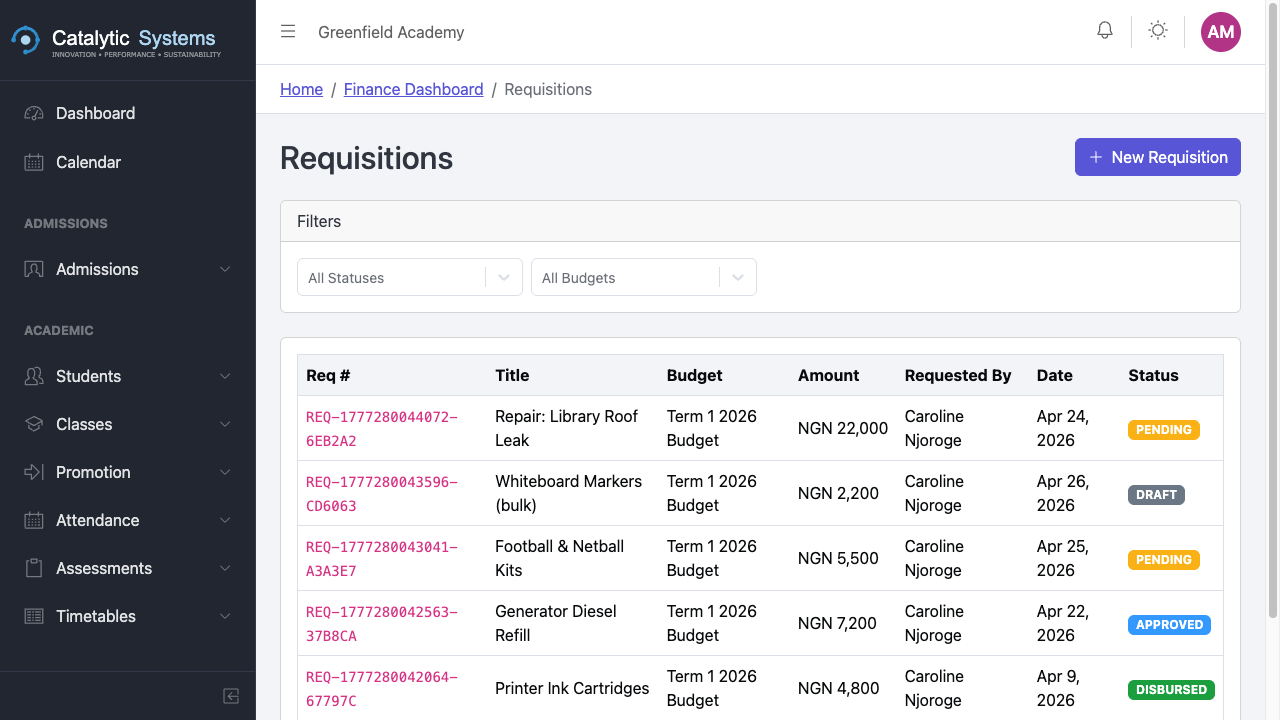
- Go to Finance → Requisitions.
- Click New Requisition.
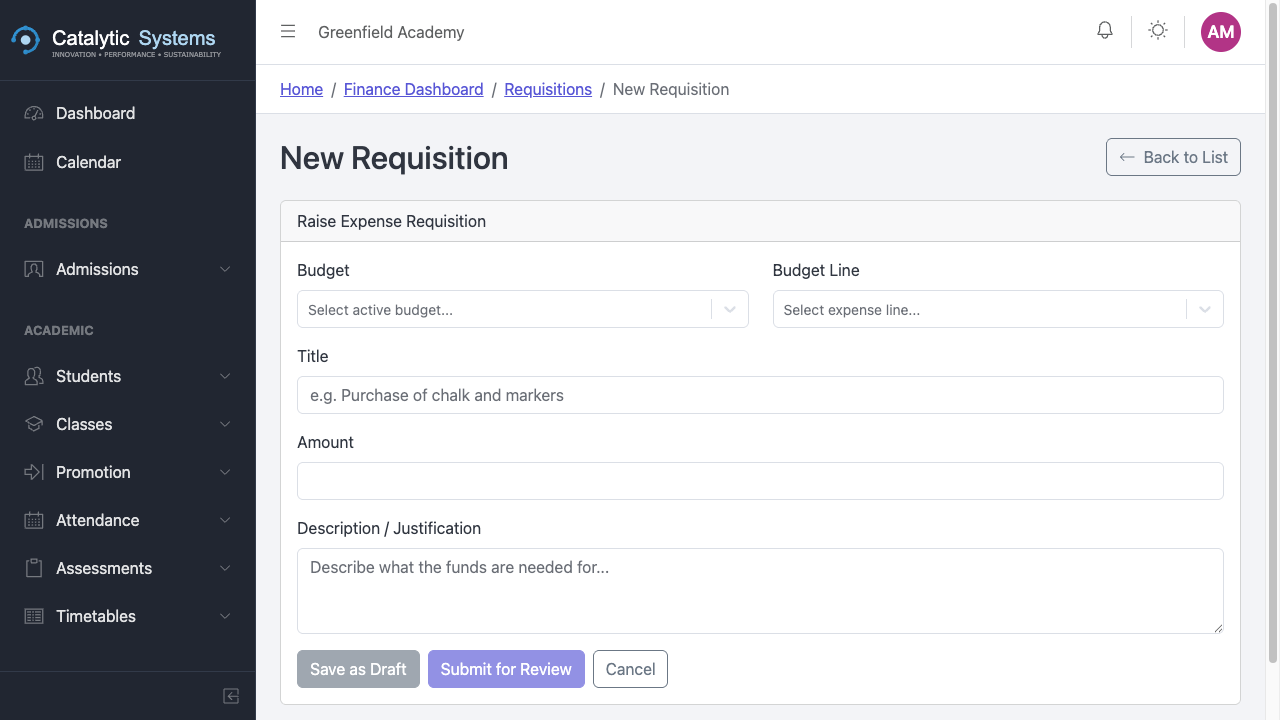
- Fill in:
| Field | Description |
|---|---|
| Title | Brief description of what is being requested |
| Items | List of items with estimated unit cost and quantity |
| Justification | Reason for the purchase |
| Budget Line | Which budget this should come from |
| Urgency | Normal / Urgent |
- Click Submit for Approval.
Approving a Requisition
School Admins review and approve or reject submitted requisitions:
- Go to Finance → Requisitions.
- Open a requisition with Pending status.
- Review the details.
- Click Approve or Reject (with a reason for rejection).

Requisition Statuses
| Status | Meaning |
|---|---|
| Draft | Saved but not yet submitted |
| Pending | Awaiting approval |
| Approved | Cleared for purchase |
| Rejected | Declined with reason |
| Fulfilled | Purchase completed, expense recorded |
Converting to an Expense
Once a requisition is approved and the purchase is made:
- Open the approved requisition.
- Click Mark as Fulfilled.
- Enter the actual amount spent.
- EMS creates an expense record automatically.