Application Pipeline
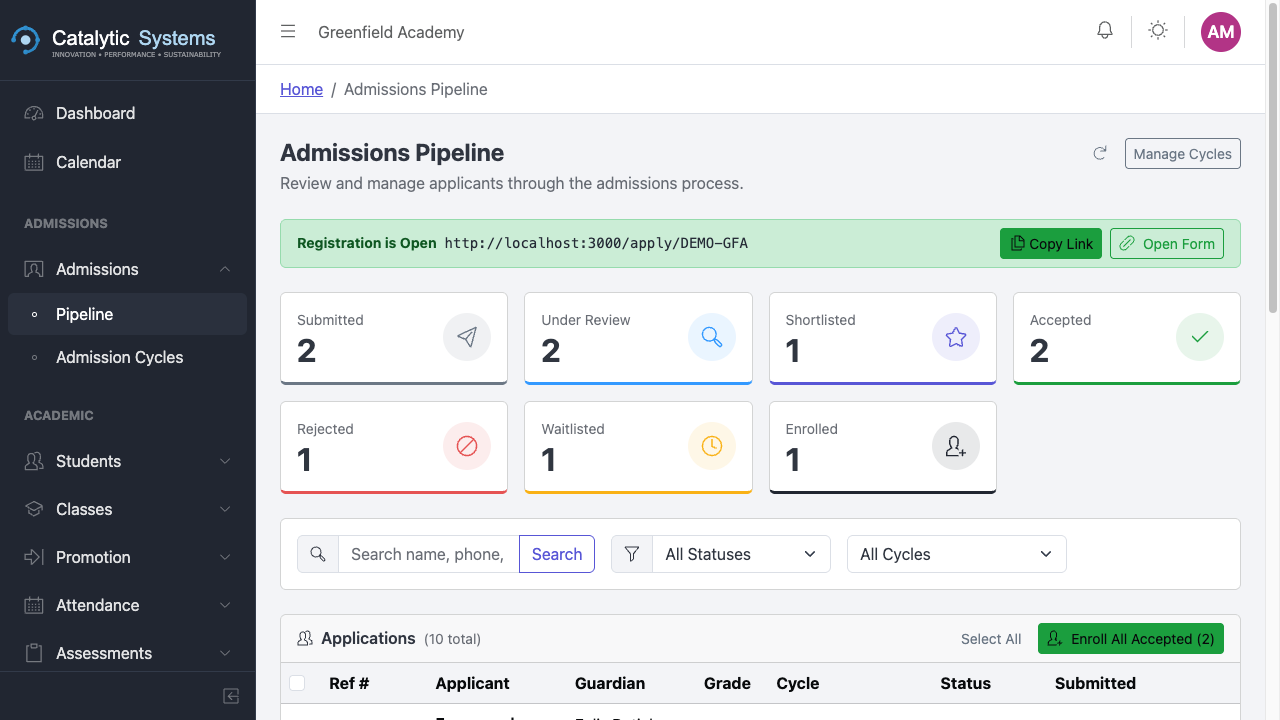
The Application Pipeline is where you review, manage, and decide on student applications for a given admission cycle.
Viewing Applications
- Go to Admissions → Application Pipeline.
- Select the Admission Cycle from the dropdown.
- All applications for that cycle are listed with their current status.
Application Statuses
| Status | Meaning |
|---|---|
| Pending | Received, not yet reviewed |
| Under Review | Being assessed |
| Shortlisted | Conditionally approved, pending interview/test |
| Admitted | Accepted — student record will be created |
| Rejected | Application declined |
| Withdrawn | Applicant withdrew |

Reviewing an Application
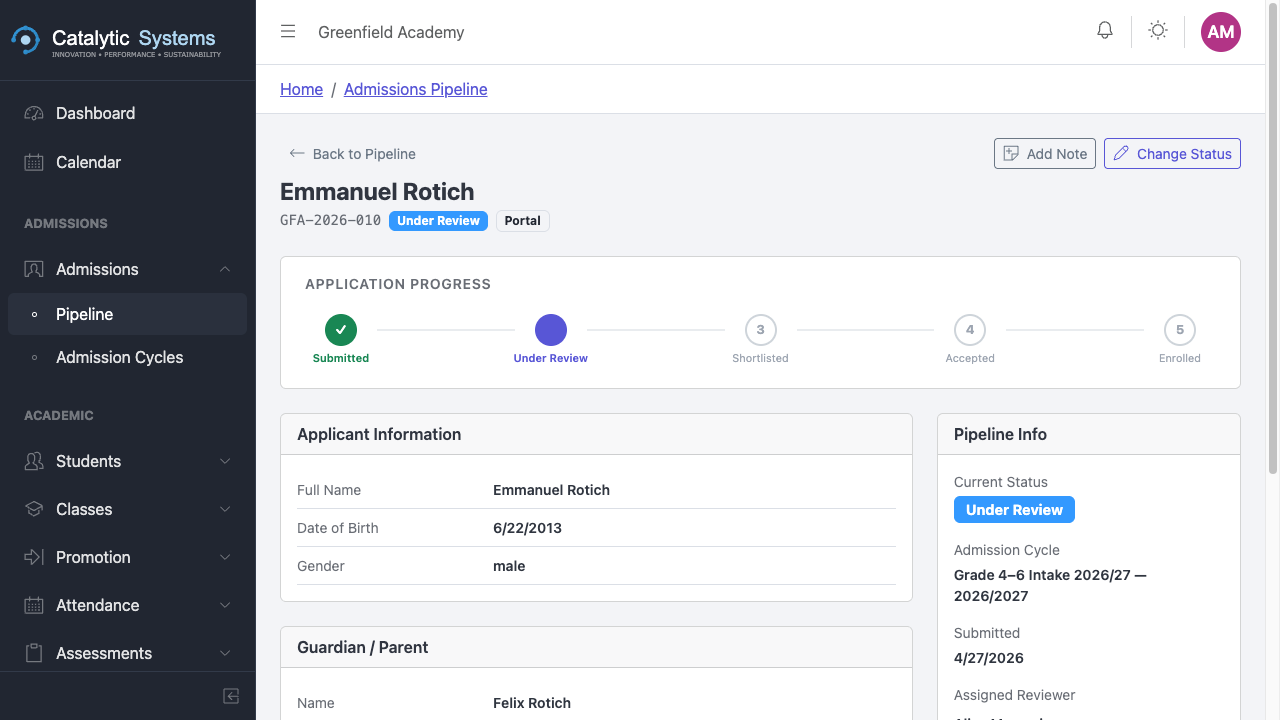
- Click an application row to open the Application Detail view.
- Review the submitted information: personal details, documents, guardian contacts.
- Use the Status dropdown to update the application status.
- Add an internal note if needed (not visible to applicants).
- Click Save.

Bulk Actions
To process multiple applications at once:
- Check the checkboxes on the left of each row.
- Use the Bulk Action dropdown to set status for all selected.
- Click Apply.
Admitting an Applicant
When you set an application to Admitted:
- EMS automatically creates a Student record for the applicant.
- The student is assigned to the target class specified in the admission cycle.
- A welcome notification is sent to the guardian's email.
tip
Review all application documents before admitting. Once admitted, the student record is live in the academic system.