Students
The Students module is the central registry for all enrolled students. Every other module — attendance, assessments, fees, reports — references student records.
Viewing Students
Go to Academic → Students to see the full student list.
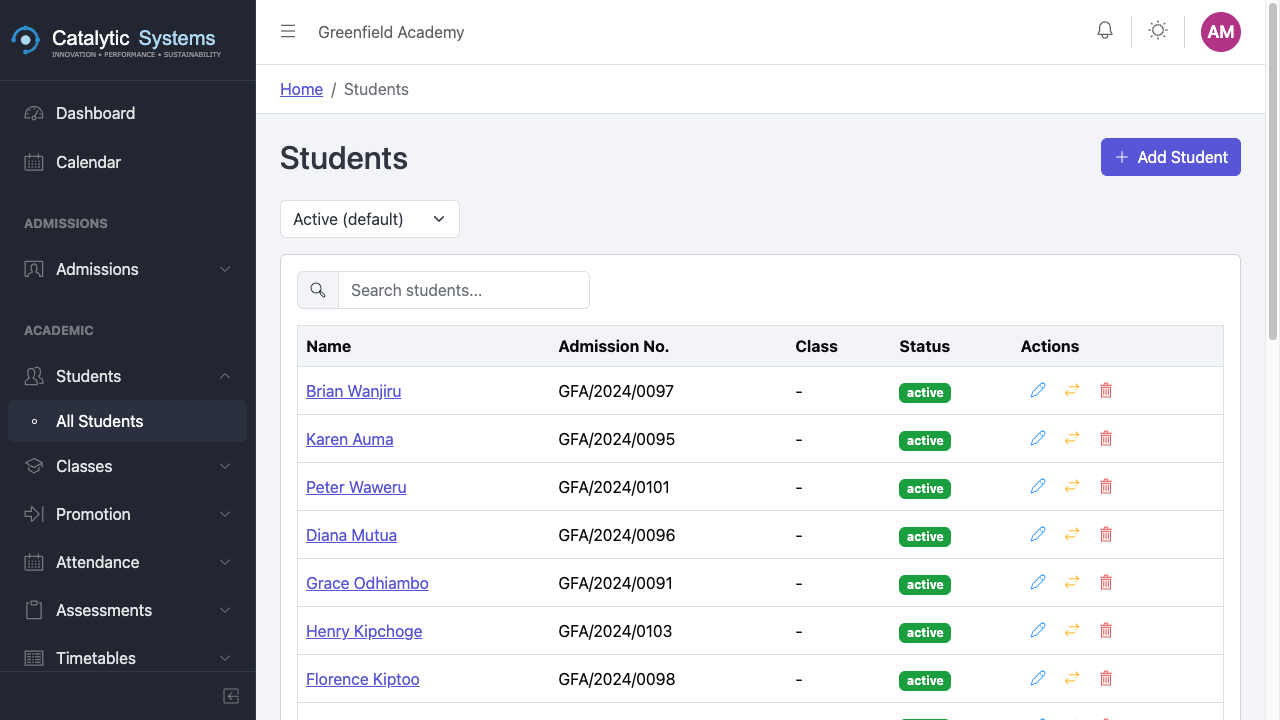
Use the search bar to find a student by name or admission number. Use the Class filter to narrow the list to a specific class.
Adding a Student
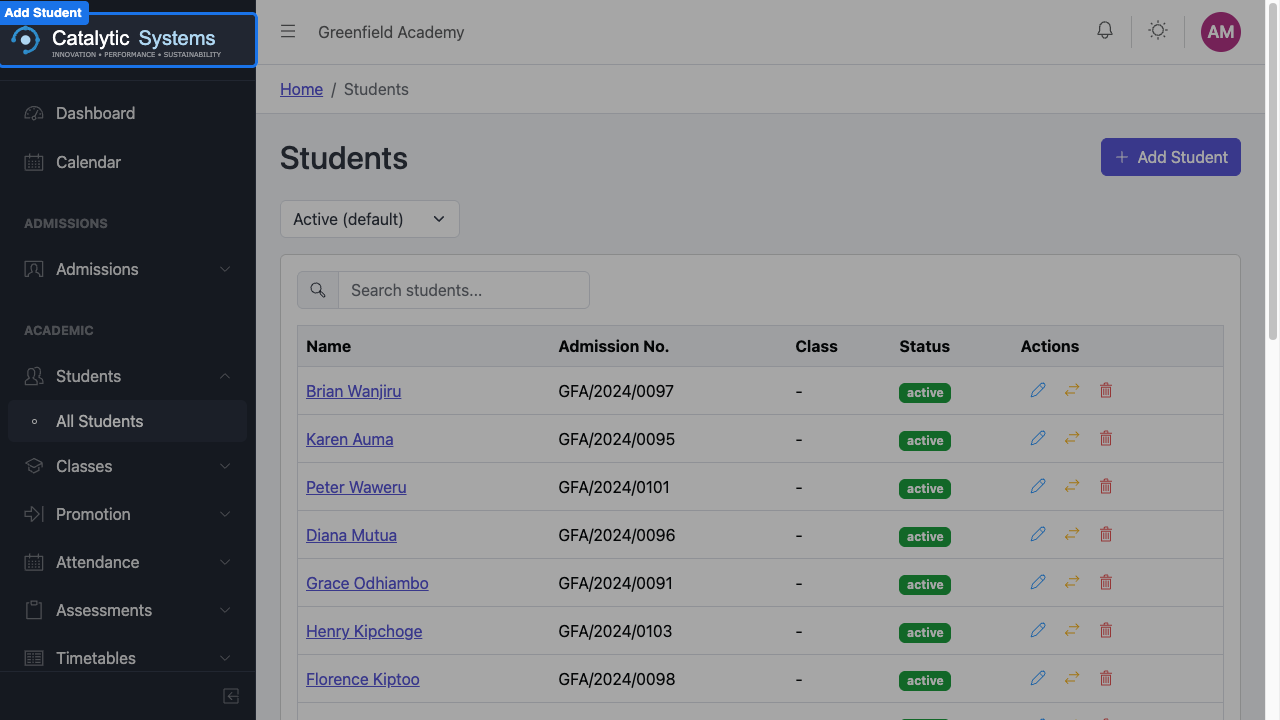
- Click Add Student.
- Fill in the student's details:
| Section | Fields |
|---|---|
| Personal | Full name, date of birth, gender, nationality, religion |
| Admission | Admission number, date of admission, class |
| Contacts | Guardian name, relationship, phone, email |
| Medical | Blood group, known conditions, emergency contact |
- Upload a passport photo (optional but recommended).
- Click Save.
If you leave the admission number blank, EMS will auto-generate one based on the year and a sequence. You can override this with your school's numbering format in Settings.
Editing a Student
Click a student's name to open their profile page, then click Edit to modify their details.
Bulk Import
To import multiple students at once from a spreadsheet:
- Click Load Data → Students in the sidebar.
- Download the CSV template.
- Fill in your data and upload the file.
- Review the preview and click Import.
Student Profile
The student profile is a unified view of everything about a student:
- Personal details and contact information
- Current class and academic history
- Attendance summary
- Fee account and payment history
- Assessment results
- Documents and uploads
Bulk Class Assignment
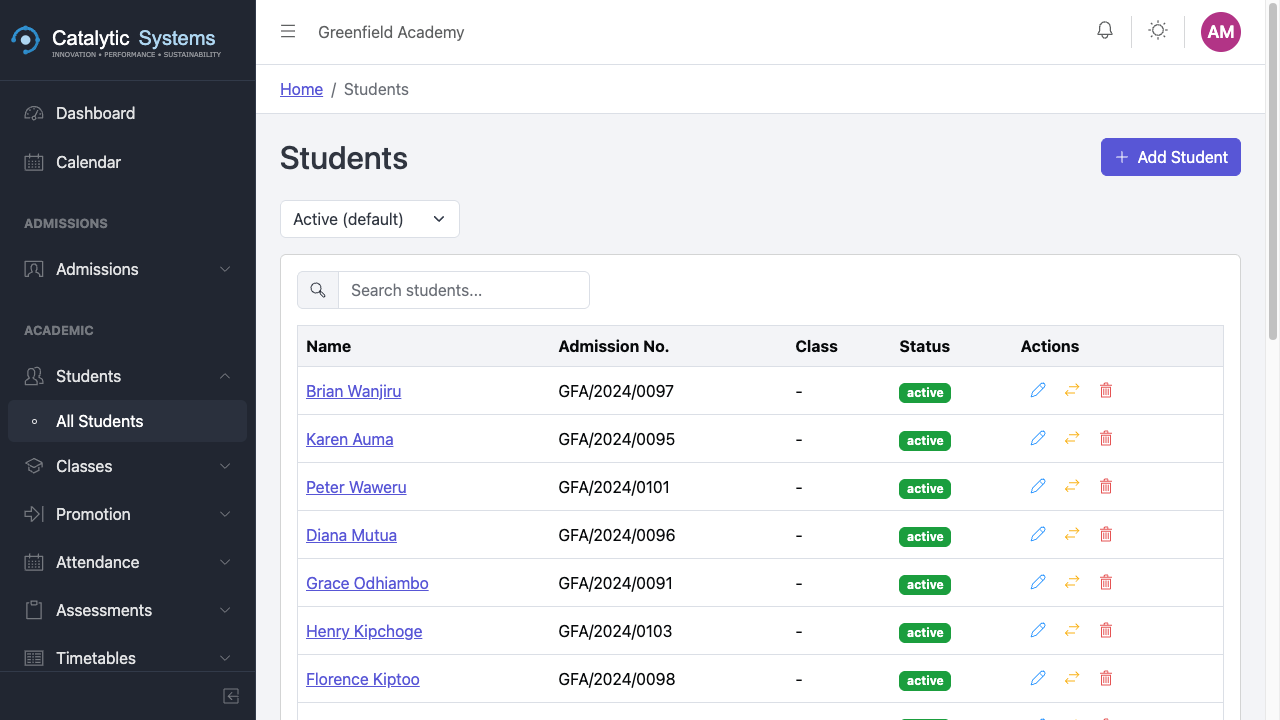
To move multiple students to a different class:
- On the Students list, check the students you want to move.
- Click Bulk Assign Class.
- Select the target class and confirm.