Assessments
The Assessments module manages tests, exams, and continuous assessment tasks (CATs). Teachers enter marks which feed directly into the Report Packs module.
Creating an Assessment
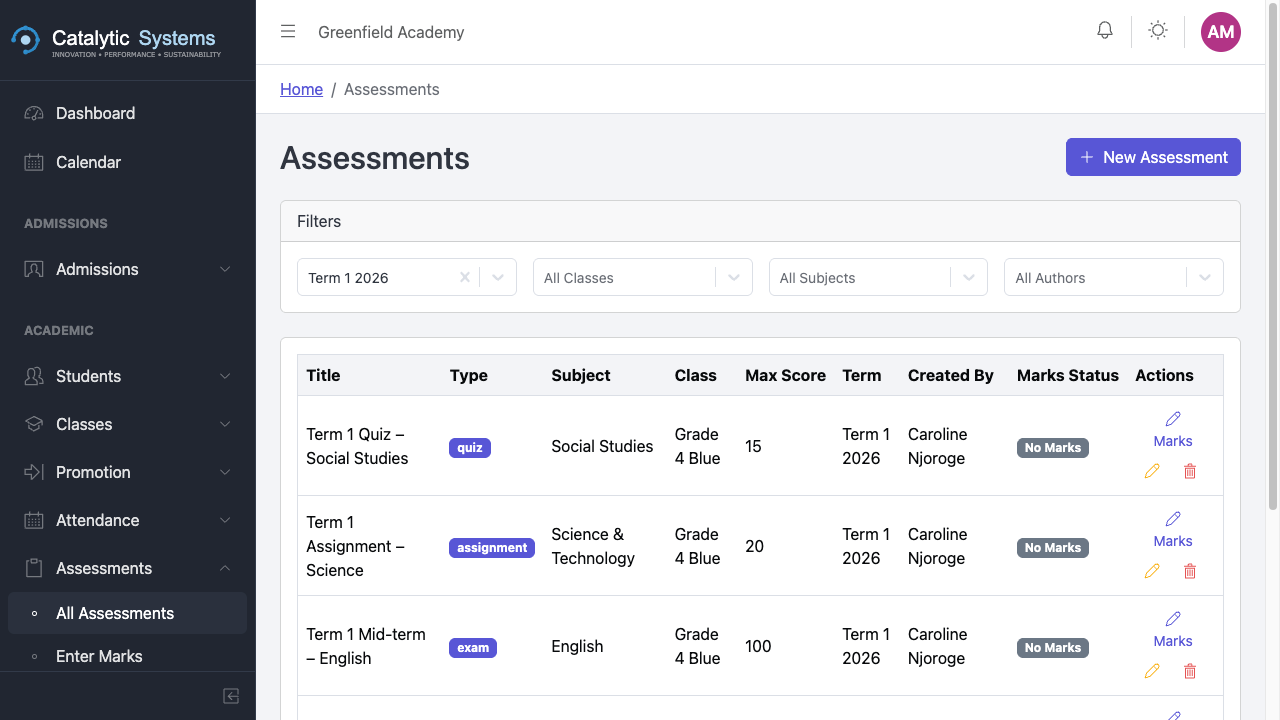
- Go to Academic → Assessments.
- Click New Assessment.
- Fill in the details:
| Field | Description |
|---|---|
| Name | e.g. "Term 1 Mid-term Exam" |
| Type | Exam, CAT, Assignment, Practical, etc. |
| Subject | The subject being assessed |
| Class | The class being assessed |
| Total Marks | Maximum possible score |
| Date | Date of the assessment |
| Assessment Group | Group this belongs to (for report weighting) |
- Click Save.
Entering Marks
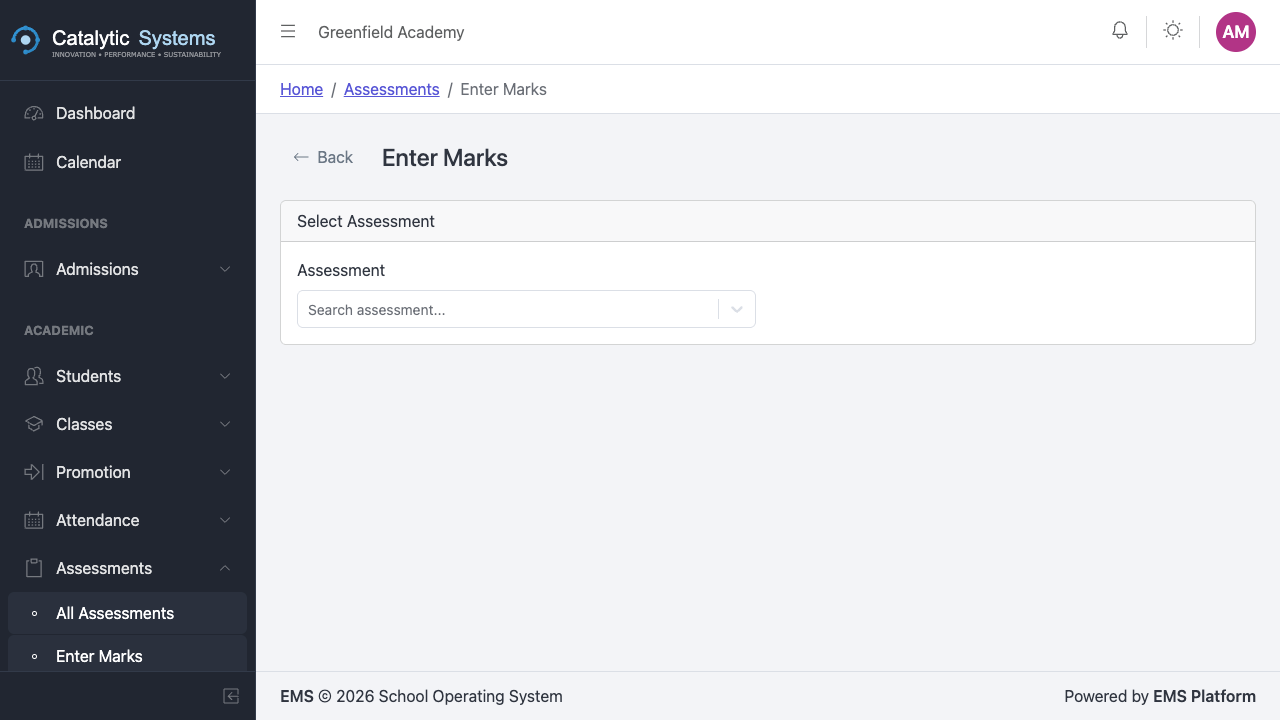
- Open an assessment from the list.
- Click Enter Marks.
- The student list for the class is shown. Enter each student's score.
tip
Use Tab to move between score fields quickly. Scores that exceed the total marks are highlighted in red.
- Click Save Marks.
Assessment Groups
Assessment groups allow you to weight different assessment types in report calculations (e.g. exams count for 70%, CATs count for 30%).
Go to Settings → Assessment Groups to configure groups and their weights.
Grading
EMS can automatically convert numerical scores to letter grades and comments based on your school's grading scale.
Go to Settings → Grading to set up your grading scale.